Organizations
Overview⚓︎
Organization management in Maven Central Portal enables teams to collaborate on publishing artifacts under shared namespaces. Organizations provide a structured way to manage access control, delegate publishing responsibilities, and maintain audit trails for compliance and accountability.
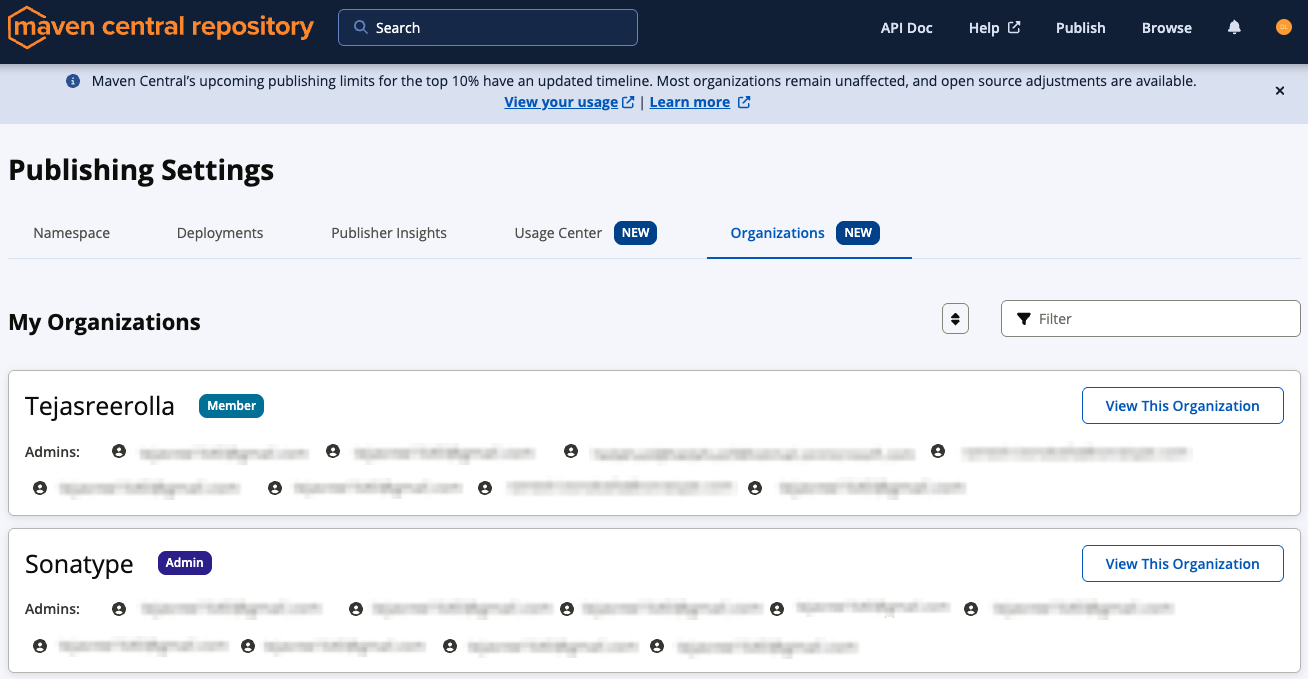
Organization management is available under the Publish section in the Organizations tab.
Note
If you do not see your organization or the Organizations tab, contact Central Support to request Organization Management access.
Organizations⚓︎
An Organization represents a collective entity (company, project team, open-source group) that owns one or more namespaces on Maven Central. Organizations have:
- Name: Human-readable identifier (e.g.,
my-company) - Members: Users with varying roles (Admin or Member)
- Namespaces: Verified group IDs associated with the organization
- Audit Trail: Complete history of all actions taken within the organization
Member Roles⚓︎
Organizations support two member roles:
| Role | Capabilities |
|---|---|
| Admin | Full management access: invite/remove members, manage namespace permissions, view audit logs, manage all namespaces, suspend/reinstate members |
| Member | Can publish to namespaces to which they've been granted access, but cannot manage other members or view audit logs |
Note
Initial organization administrators were automatically assigned based on available account information and historical activity. Most changes can be made under the Organizations tab. If you require assistance in updating your organization, contact Central Support.
Admin Probation⚓︎
Newly appointed administrators automatically enter a 30-day probationary period during which they are not able to remove members from the organization, promote members to admin, or suspend/reinstate members.
Administrators under probation are still able to invite members, manage namespaces, grant access, view audit logs, and initiate a claim.
Administrators under probation appear with an "Under Probation" badge in the active members table.
Admin Safeguards⚓︎
- Admins cannot remove, suspend, or modify permissions of other admins
- The last remaining admin cannot leave or be removed from the organization
- All admin actions (remove user, revoke invitation, suspend/reinstate, role changes) require the admin user to input a reason (5-500 characters)
Namespaces⚓︎
Namespaces are the top-level identifiers for artifacts on Maven Central (e.g., com.example.myproject). Organizations can:
- Claim a verified namespace
- Grant access to members at the namespace level
- View member counts per namespace
More details are available in the Namespace documentation.
If you do not belong to any namespace, you will not be able to join an organization on your own; an organization admin will need to invite you to that organization.
Managing Members⚓︎
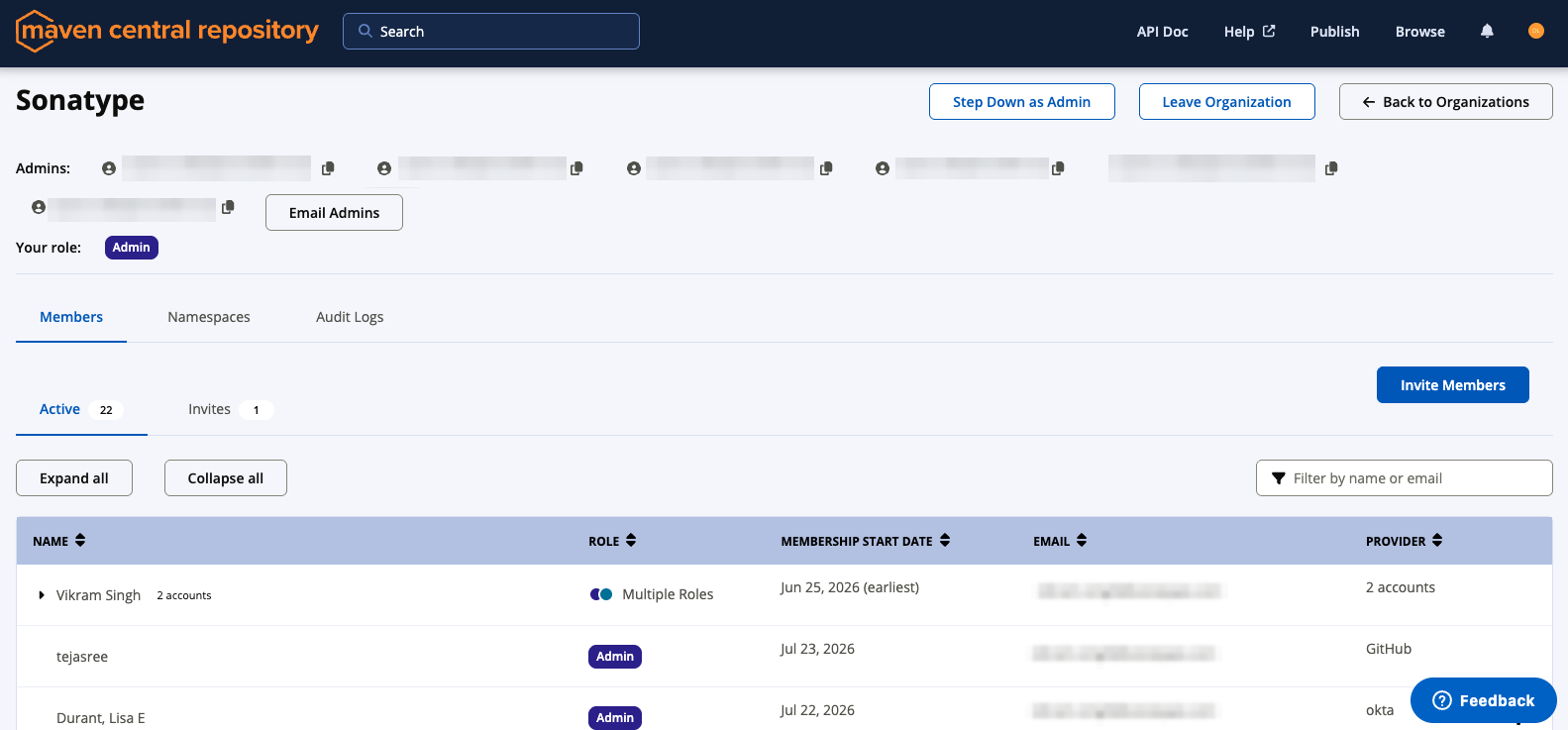
You can view details about organization members in the Members tab of an organization's detailed view.
Inviting Members⚓︎
Admins can invite users to join the organization:
- Navigate to Publish → Organizations, and select your organization to open its detail page
- From the Members tab, select Invite Members
- Enter the invitee's email address
- If desired, add a personal message
- Select Invite Members
Note that this does not send the individual an email. The newly invited individual will see and can accept the pending invitation in his or her own Organizations tab in Maven Central Portal.
Info
Pending invitations expire after 7 days if not accepted. Invitees will need to be re-invited to join the organization.
Managing Pending Invitations⚓︎
Admins can view and manage pending invitations in the Members → Invites sub-tab:
- View invitation status (Pending, Expired, Revoked, Declined)
- See time remaining until expiry
- Revoke pending invitations (requires providing a reason)
Viewing Members⚓︎
The Members tab displays all organization members with:
- Member name and email
- Authentication provider (Google, GitHub, etc.)
- Role (Admin or Member)
- Membership start date
Members are organized into two sub-tabs:
- Active: Current members of the organization
- Invites: Outstanding invitations (admin-only view)
Editing Member Roles⚓︎
Admins can promote members to Admin from the Members tab:
- Navigate to Members → Active tab
- Find the member in the list
- Click the Member actions menu (a cog icon)
- Select Make Admin
- Provide a reason for the change (required, 5-500 characters)
- Confirm the action
Note
You cannot modify the role of another admin. Admins can only: - Step down from their own admin role (if not the last admin) - Modify their own permissions on namespaces
Suspending Members⚓︎
Admins can temporarily suspend members who should no longer have access:
- Navigate to Members → Active tab
- Find the member in the list
- Click the Member actions menu (a cog icon)
- Select Suspend Member
- Provide a reason for the suspension (required, 5-500 characters)
- Confirm the action
Suspended members: - Cannot access the organization - Cannot publish to any namespace - Remain visible in the member list with "Suspended" status
To reinstate a suspended member:
- Navigate to Members → Active tab
- Find the member you wish to reinstate
- Click the Member actions menu (a cog icon)
- Select Reinstate Member
- Provide a reason for reinstatement (required)
- Confirm the action
Removing Members⚓︎
Admins can permanently remove members from the organization:
- Navigate to Members → Active tab
- Find the member in the list
- Click the Member actions menu (a cog icon)
- Select Remove Member
- Provide a reason for removal (required, 5-500 characters)
- Confirm the action
Note
Removing a member is permanent. They will need to be re-invited to rejoin the organization.
Multi-Account Users⚓︎
Users with multiple accounts using the same email address (e.g., one Google account and one GitHub account with the same email) will see a consolidated view:
- Both accounts appear grouped together in the member list
- Each account shows its respective authentication provider
- Actions affect the individual account, not all accounts with that email
Managing Namespaces⚓︎
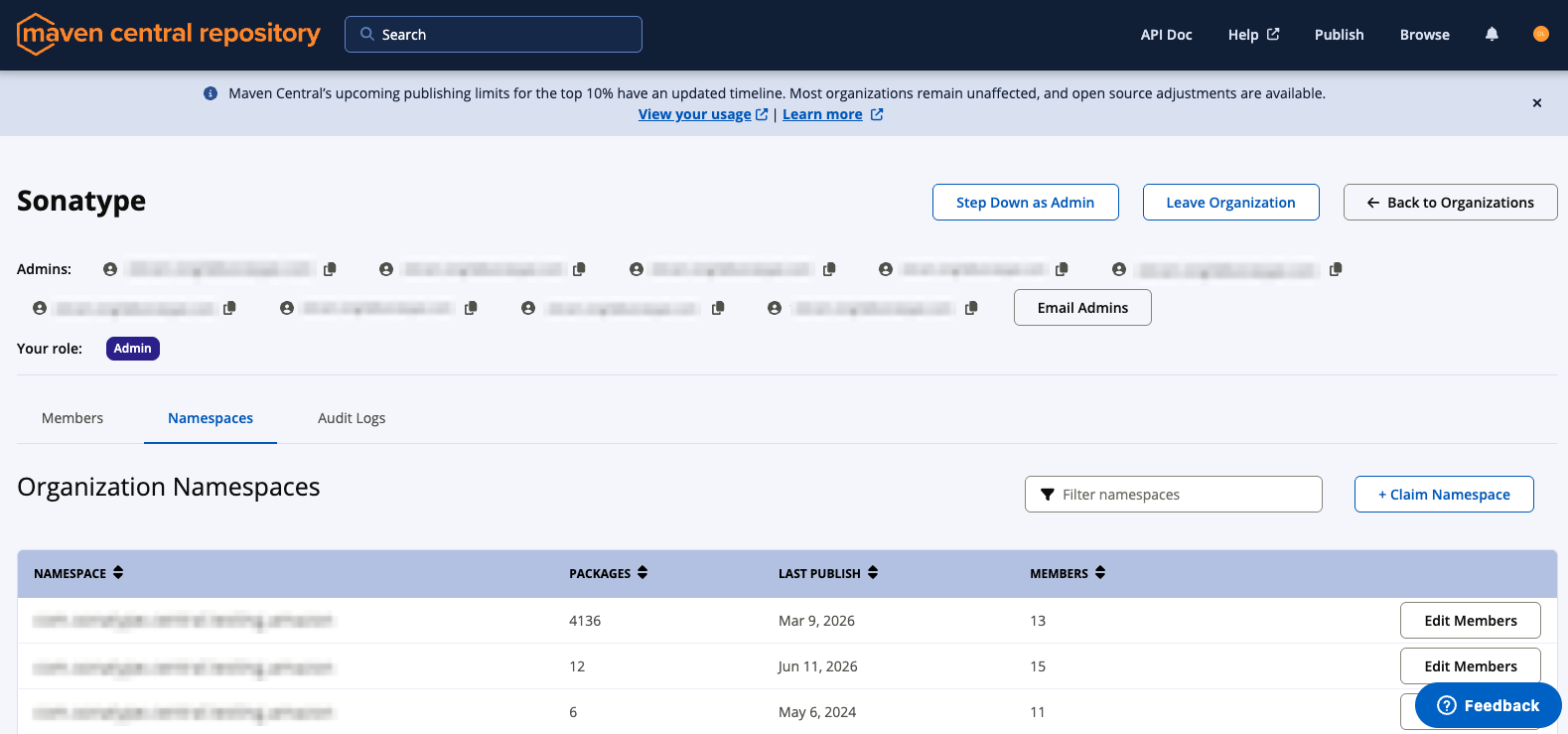
The Namespaces tab shows the following details for namespaces claimed by your organization:
- Namespace name
- Package count
- Member count (number of users with access)
- Last publish date
Each namespace listing also has an Edit Members button to allow administrators to manage access to individual namespaces.
New Namespaces⚓︎
When you create a new namespace as detailed in the Namespace documentation, Maven Central will automatically map the namespace to an existing organization if one already exists with the same namespace name. If no organization exists, it will create a new organization with you as the administrator.
Claiming Existing Namespaces⚓︎
To claim an existing namespace for your organization:
- Navigate to your organization's detail page
- Go to the Namespaces tab
- Click Claim Namespace
- Enter your desired namespace (e.g.,
com.example) - Click Submit in the Claim Namespace dialogue.
If the namespace passes our validation, it will be added to the organization. Otherwise, you may need to contact Central Support.
Managing Namespace Members⚓︎
There are two ways to manage namespace members:
From the Namespaces tab, admins can add/remove multiple members:
- Click Edit Members on any namespace
- See current members with access
- Grant or revoke access for one or more members
From the Members tab, admins can give a single member permission to multiple namespaces:
- Select the Member actions icon (cog icon) for an individual user
- Select Edit Namespace Permissions
- Grant or revoke access for that member to one or more namespaces
Note
Admins automatically receive access to all namespaces in the organization. This access cannot be revoked for admins.
Audit Logs⚓︎
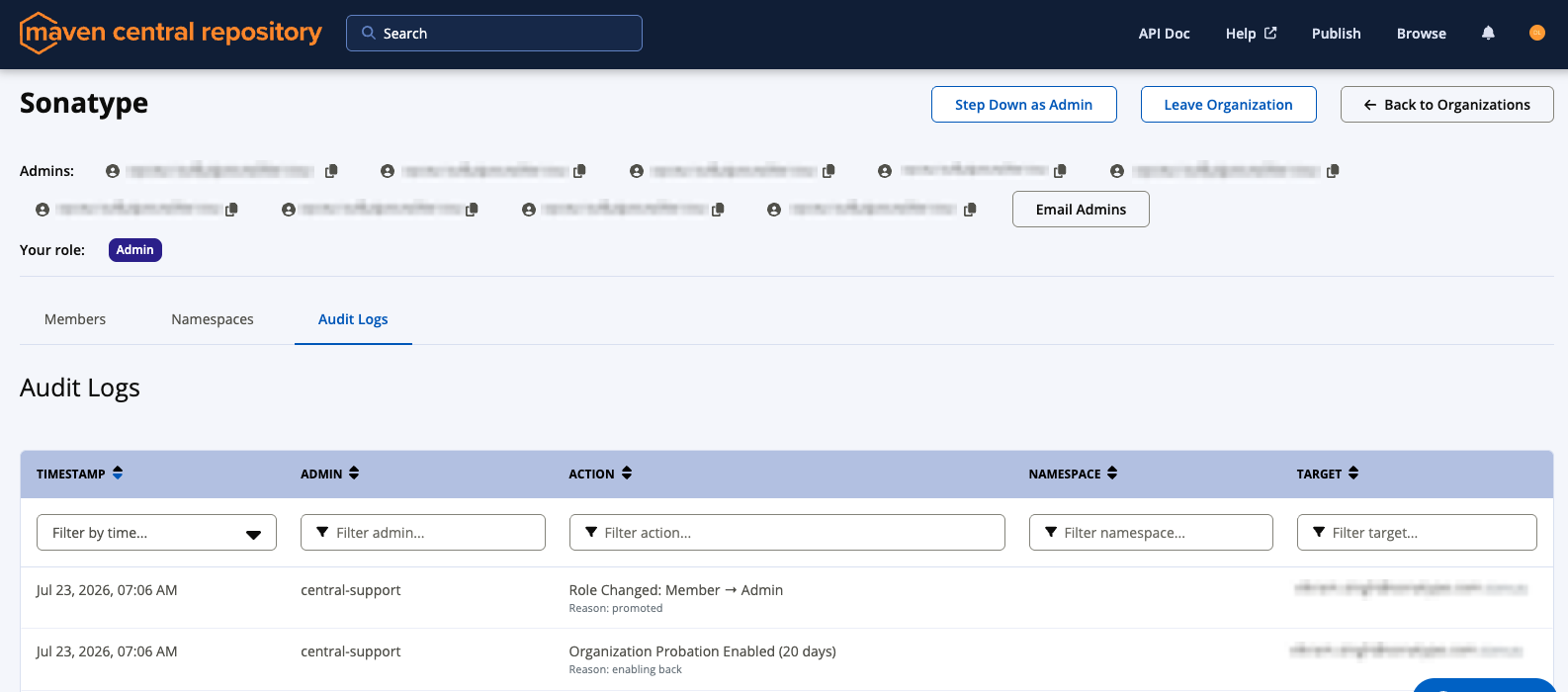
The Audit Logs tab provides a complete, immutable record of all actions within your organization.
The audit trail captures:
- Member Management: Member added, removed, suspended, reinstated, role changed
- Invitations: Invitation sent, accepted, declined, revoked, expired
- Namespace Management: Namespace claimed, verified, members granted/revoked access
- Admin Actions: All administrative actions with mandatory reason documentation
Audit logs are visible only to organization admins and include the following details:
| Field | Description |
|---|---|
| Timestamp | When the action occurred (UTC) |
| Admin | Account that performed the action |
| Action | Type of action performed along with the provided reason for any admin actions |
| Namespace | Namespace affected |
| Target | User or resource affected |
The logs can also be filtered by any of these fields.